> For the complete documentation index, see [llms.txt](https://help.chatlyai.app/llms.txt). Markdown versions of documentation pages are available by appending `.md` to page URLs; this page is available as [Markdown](https://help.chatlyai.app/subscription-and-billing/subscription-upgrade-downgrade.md).
# Subscription Upgrade / Downgrade
Chatly gives you flexibility in managing your subscription. You can upgrade to unlock advanced features or downgrade to optimise costs. This guide explains the benefits of each option, when changes take effect, and how to complete the process.
### Why upgrade to “Standard Plan”
Get more value and access to more features when compared to monthly renewals or basic plan, giving better value for ongoing use.
| **Plan** | **AI Models Included** |
| ----------------- | --------------------------------------------------------------------------------------------------------------------------------------------------------------------------------------------------------------------------------------------------------------------------------------------------------------------------------------------------------------------------------------------------------------------------------------------------------------------------------------------------------------------------------------------------------------------------------------------------------------------------------------------------------------------------------------------------------------------------------------------------------------------------------------------------------------------------------------------------------------------------------------------------------------------------------------------------------------------------------------------------------------------------------- |
| **Standard** |
Ideogram 3.0
Qwen Image
Qwen Image Edit
FluxKontext Pro
Flux.2 Pro
Nano Banana
Nano Banana Pro
Z Image
Seedream 4.0
Seedream 4.5
xAI Grok Image
Nano Banana 2
Seedream 5 Lite
Anthropic Claude 4.5 Haiku
Grok 4.1 Fast (Reasoning)
OpenAI GPT-4o-mini
Kimi K2 (Instruct)
OpenAI GPT-5.1
OpenAI GPT-5 Mini
OpenAI GPT-5
OpenAI GPT-4o
OpenAI GPT-5.2
OpenAI GPT-5.2 Pro
OpenAI GPT-5.4
OpenAI GPT-5.4 Pro
OpenAI GPT-5.4 Mini
OpenAI GPT-5.4 Nano
Anthropic Claude 4.6 Sonnet
Anthropic Claude 4 Sonnet
Anthropic Claude 4.6 Opus
Anthropic Claude 4.5 Sonnet
Grok 4
Grok 4 Fast
Google Gemini 2.5 Pro
Google Gemini 3.0 Flash
Google Gemini 3.0 Pro
Google Gemini 3.1 Pro
Google Gemini 3.1 Flash Lite
|
| **Professional** | All models in standard |
| **Teams Creator** | All models in standard |
| **Teams Scale** | All models in standard |
#### Pricing
| **Duration** | **Standard** | **Professional** | Business |
| ------------ | ------------ | ---------------- | -------- |
| Monthly | $20 | $40 | $30 |
| Quarterly | $45 | $90 | $70 |
| Yearly | $90 | $180 | $290 |
#### When does an Upgrade Take Effect?
* **Immediate Upgrade**\
If you choose to upgrade immediately, the new plan will start the same day. Any remaining portion of your current subscription will be credited toward the upgrade (proration).
* **Upgrade at the End of Billing Cycle**\
You can also choose to upgrade at the end of your current billing period. In this case, your existing plan remains active until the cycle completes, after which the upgraded plan will begin.
## Upgrade Cases
Following are the possible upgrade scenarios. For upgrade as mentioned above, you can opt for the effect period:
1. Immediate effect
2. At the end of billing period
### How to Upgrade Your Subscription
1. **Go to “Manage Plans"**
* Log in to your Chatly account.
* Navigate to Manage Plans in left side nav.
2. **Check Your Current Plan**
* Review your existing plan details.
* Select Switch to Other Plans.
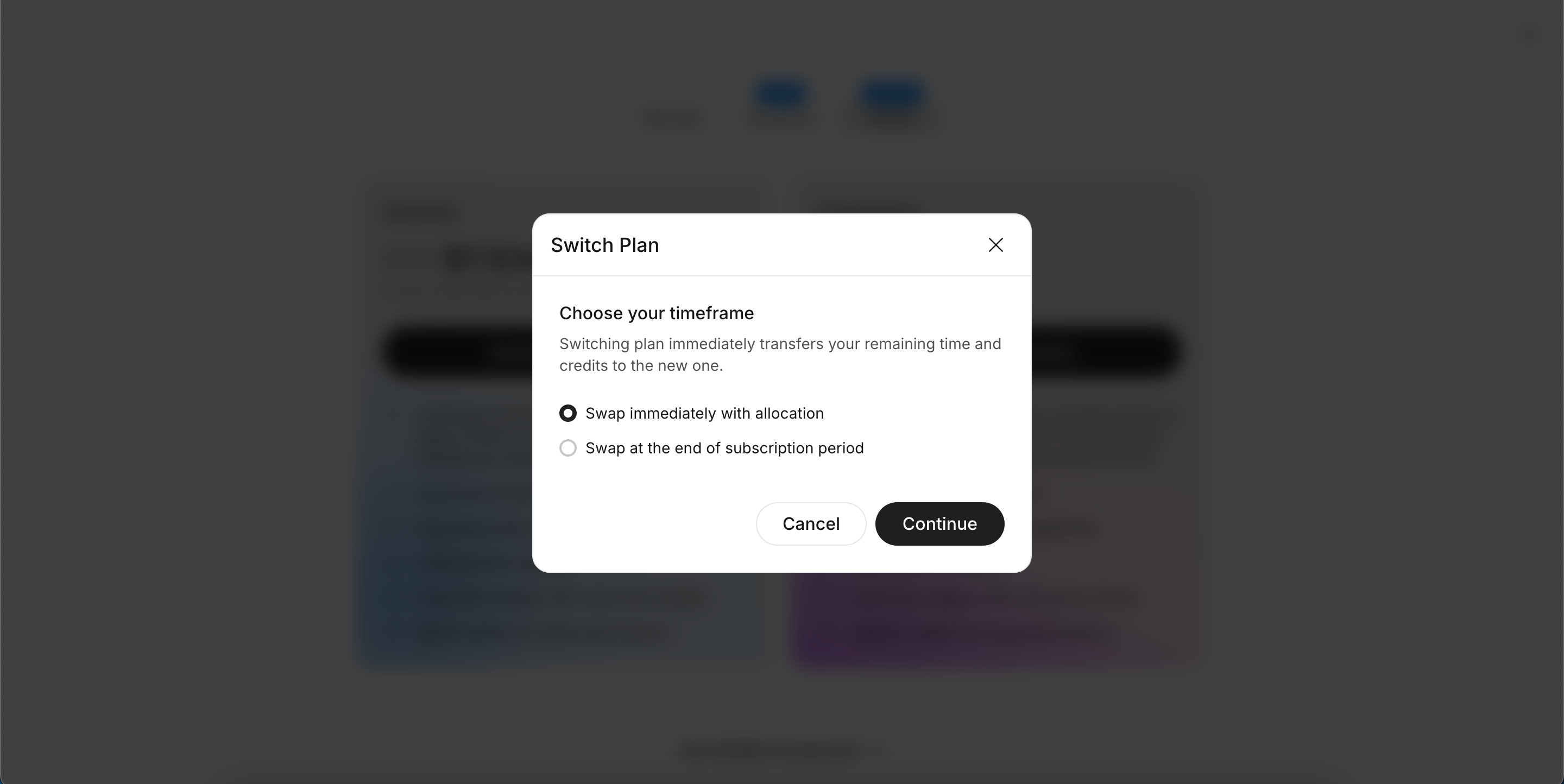
3. **Select Upgrade Timing**
Choose either:
* Swap at the end of the subscription period, or
* Swap immediately with allocation of your remaining time.
4. **Review Billing Adjustments**
* Carefully check the billing summary, including credits from unused time.
5. **Confirm and Complete Payment**
* Confirm the changes.
* If applicable, make the payment to activate your upgraded plan.
### Downgrade Your Subscription
For downgrade, effect of new downgraded plan will begin **at the end of billing period.**
You can switch to a lower-priced tier or a shorter billing cycle at any time. Your new plan will take effect at the end of your current billing period.
#### How to Downgrade Your Subscription
1. **Go to “Manage Plans”**
* Log in to your Chatly account.
* Navigate to Manage Plans.
2. **Check Your Current Plan**
* Review your existing subscription details.
* Select Switch to Other Plans.
3. **Select a Plan**
* Choose the plan that best fits your usage.
4. **Review Billing Adjustments**
* Confirm the adjustments that will take effect once the current billing cycle ends.
5. **Confirm the Downgrade**
* Submit the change. Your new plan will begin with the next billing period.
## Summary
Upgrades can take effect immediately or at the end of the billing cycle with prorated adjustments. Downgrades always take effect at the start of the next billing period. This flexibility ensures that your Chatly subscription remains aligned with both your needs and your budget.
---
# Agent Instructions
This documentation is published with GitBook. GitBook is the documentation platform designed so that both humans and AI agents can read, navigate, and reason over technical content effectively. Learn more at gitbook.com.
## Querying This Documentation
If you need additional information that is not directly available in this page, you can query the documentation dynamically by asking a question.
Perform an HTTP GET request on the current page URL with the `ask` query parameter, and the optional `goal` query parameter:
```
GET https://help.chatlyai.app/subscription-and-billing/subscription-upgrade-downgrade.md?ask=&goal=
```
`ask` is the immediate question: it should be specific, self-contained, and written in natural language.
`goal` is optional and describes the broader end goal you are ultimately trying to accomplish on behalf of the user. GitBook uses it to tailor the answer towards what is most useful for that goal.
The response will contain a direct answer to the question and relevant excerpts and sources from the documentation.
Use this mechanism when the answer is not explicitly present in the current page, you need clarification or additional context, or you want to retrieve related documentation sections.